
Your Brightcon 2026 HyHyve space is at: https://app.hyhyve.com/?spaceId=mPLQt9tgvP3EJG3NuP8cM
Access is restricted to registered online and onsite participants, and you can only enter using the email address you registered with.
We're also running two Element chats (several login options):
- Conference chat — for discussions, thoughts, and questions: https://app.element.io/#/room/#brightway/brightcon:matrix.org
- Technical chat — for any technical issues on the Indico webpage or HyHyve: https://app.element.io/#/room/#brightcon-tech:matrix.org
You don't need to read the tour below in advance, because the opening ceremony will walk everyone through the platform live. But it's here if you'd like to get familiar first. For technical problems, please post in the technical chat above.
FIRST LOGIN
Open the space link above. You'll be asked for your name, and you can optionally add a photo and a few keywords describing your interests, experience, and background. This helps other attendees to network with you.
GUIDED TOUR
You'll appear in the space as an avatar. Move with your arrow keys and zoom in and out. You're welcome to enter and explore from now, but the space won't be fully set up (links, posters, etc.) until Wednesday.
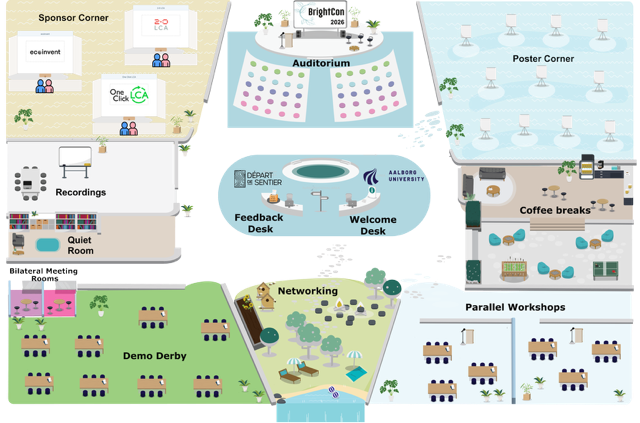
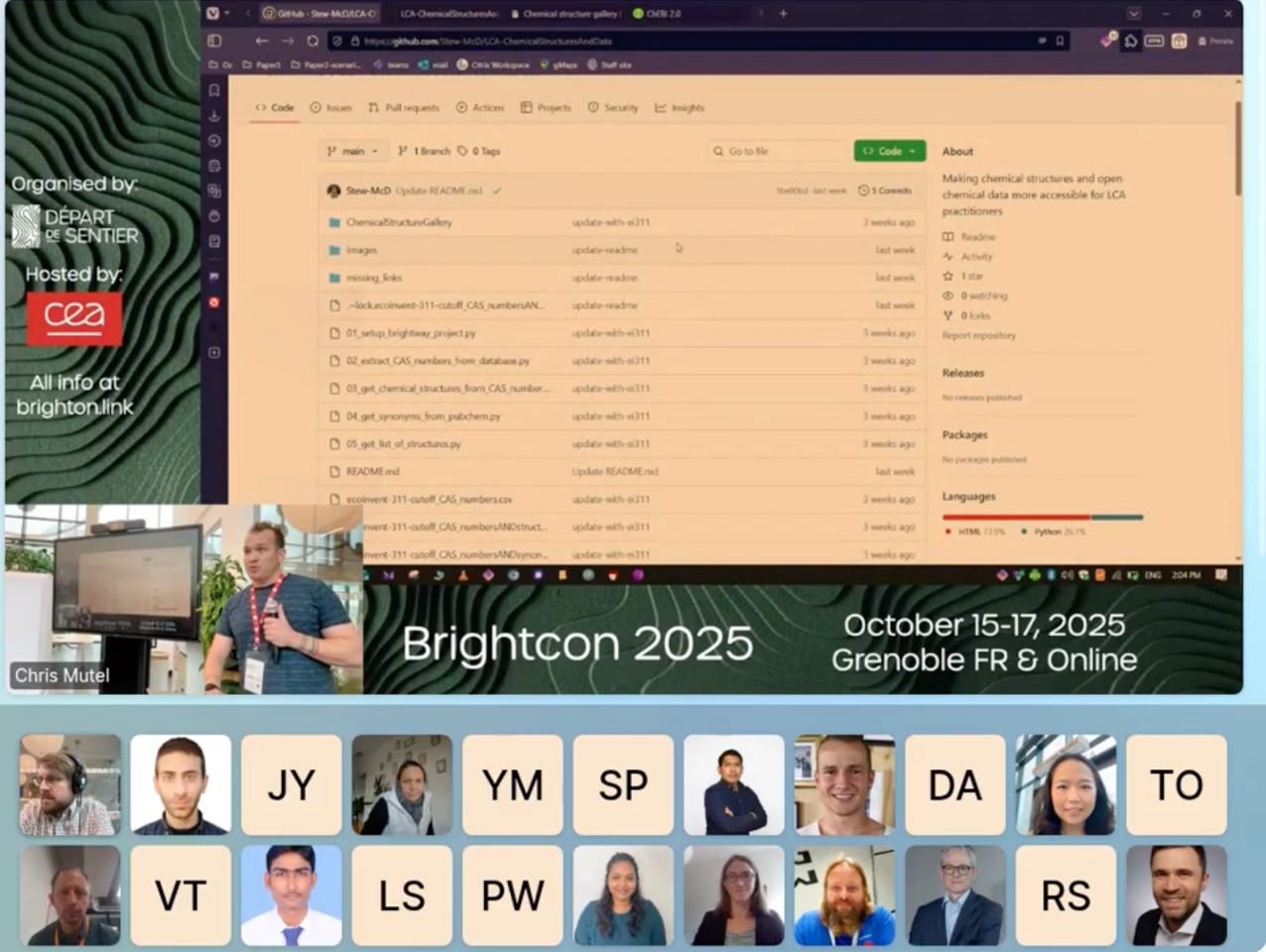
- Auditorium — all main sessions happen here (it mirrors the real auditorium at AAU). Move your avatar onto the blue Auditorium square to join. You'll see the speaker or room, the online attendees, and the presenter's shared screen.
- Meetings start automatically when you bump into another attendee — a nice chance to network if it happens by accident. To avoid this, leave the space or move to the Quiet Room.
- Workshops and Demo Derby — in the rooms at the bottom of the map.
- Welcome desk — here contains the same instructions you're reading here.
- Feedback desk — where you could provide your feedback at the end of the conference
- Agenda — links to the full timetable on Indico.
- Poster corner — all Brightcon 2026 posters.
- Networking & coffee breaks — arrive ahead of a session/day to discuss what's been presented, network, or just chat.
- Recordings — for attendees in other time zones, session recordings live here. Hover over the board to see each day's playlist. Recordings are uploaded as unlisted YouTube videos and play directly in the room.
If you're online and want to speak (e.g. during Q&A), raise your hand and unmute yourself, you can also turn on your video. We'll see this and give you the floor.
SOME TECHNICAL ASPECTS
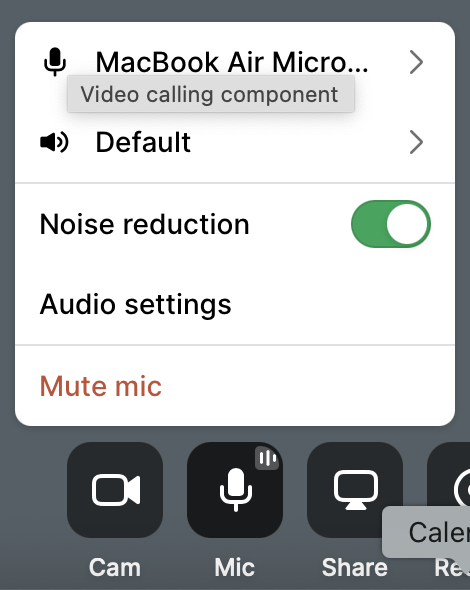
- Turn on noise reduction to improve your audio.
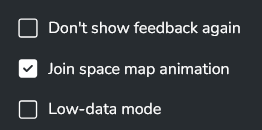
- In the right-hand Settings panel, switch on Low-data mode if your video isn't loading well.
- If meeting diagnostics show an unstable connection, click the diagnostics icon (three bars) and Disable incoming videos. This keeps the sound but hides both other participants' video and the presentation.